
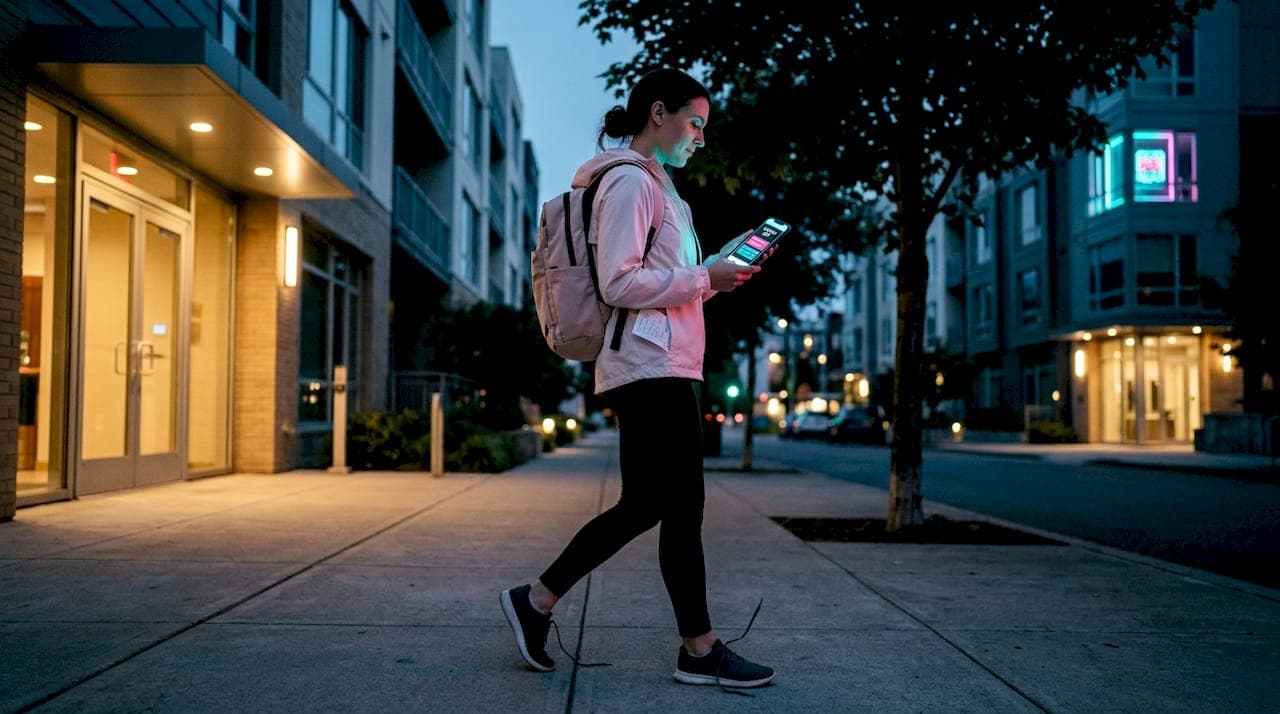
Walking alone at night or in an unfamiliar area puts you in a position where seconds matter. This walking alone safety app guide covers what actually works: which personal safety apps are worth your time, how to configure your phone before you leave the house, and how to use these tools when a situation turns real. Whether you are a college student heading back from a late class or a woman navigating a new city, the right setup on your phone can make a measurable difference. Here is exactly what you need to know.
Table of Contents
- Key takeaways
- Your walking alone safety app guide starts here
- Setting up your phone and apps before you go out
- How to use safety apps effectively while walking
- Common problems and how to fix them
- Comparing your options at a glance
- My take on solo walking safety and technology
- How Quickshield-call fits into your safety setup
- FAQ
Key takeaways
| Point | Details |
|---|---|
| Built-in features first | Configure iPhone Emergency SOS or Android equivalents before adding any third-party app. |
| Test before you need it | Run a practice alert with your emergency contacts so everyone knows what to expect. |
| Automate where possible | Use automatic check-in triggers so you do not have to remember to activate them manually. |
| Layer your strategy | Combine apps with buddy systems and timed check-ins for stronger personal security on foot. |
| Know your privacy settings | Review location-sharing permissions on every app you install to control who sees your data. |
Your walking alone safety app guide starts here
Most people download a safety app and assume they are covered. They are not. The app sitting unused on page three of your home screen does nothing. This section compares what your phone already gives you versus what third-party apps add, so you can build a setup that actually works.
What your phone already does
iPhone Emergency SOS automatically calls local emergency services and sends your location to your emergency contacts. It keeps sending location updates even after the call ends. That is not a feature most people know about. Android devices offer similar SOS functionality through the power button, with the ability to share your location with preset contacts in a crisis.
Beyond calling, modern iPhones include crash detection and satellite communication built directly into the operating system. These tools do not require a cell signal in some cases. That matters if you walk in areas with spotty coverage.
Pro Tip: Set up your Medical ID on both iPhone and Android. First responders can access it from your lock screen without needing your passcode.
How third-party apps compare
Third-party personal safety apps fill gaps that built-in features do not cover. Here is a direct comparison of the most relevant options for walkers:
| App | Key feature | Best for |
|---|---|---|
| WalkSafe+ | Crime incident map overlay | Route planning before you leave |
| Ansimhelpme | Panic button linked to local police | Urban areas with high foot traffic |
| Life360 | Real-time family location sharing | Parents tracking young adults |
| Quickshield-call | Multi-layer: fake call, silent panic, zone alerts | Full-scenario personal security on foot |
The difference between a good app and a great one comes down to how many steps it takes to activate help. If you need to unlock your phone, find the app, and tap three buttons, that is three steps too many in a real situation. The best safety apps for walkers keep activation to one gesture or one tap.
Privacy is the other consideration. Many free apps monetize your location data. Read the permissions screen before you grant access. If an app asks for contacts, microphone, and location all at once, understand what each permission enables and whether you are comfortable with it.
Setting up your phone and apps before you go out
Setup is where most people skip steps. Do this once, correctly, and you do not have to think about it again.
- Add emergency contacts. On iPhone, open the Health app and tap Medical ID. Add at least two contacts who will pick up the phone. On Android, go to Settings, then Safety and Emergency, then Emergency Contacts.
- Activate Emergency SOS. On iPhone, go to Settings, then Emergency SOS. Turn on "Call with Side Button" and enable "Call with Hold." Learn the hardware triggers so you can activate SOS without looking at your screen.
- Set up automatic check-ins. iPhone's Check In feature triggers automatically when you start an Apple Maps navigation session. Your contact gets notified if you stop moving unexpectedly or deviate from your route. Turn this on before your next solo walk.
- Configure your safety app. Add primary, secondary, and tertiary emergency contacts. Set a timer for your walk. Test the alert system with one trusted contact so they know what a real alert looks like versus a test.
- Review permissions. Check which apps have access to your location at all times versus only while in use. Limit always-on access to apps you actively trust.
- Charge your phone. This sounds obvious. A phone at 12% battery when you leave is a liability. Many safety apps drain battery faster than standard use.
Pro Tip: Do a full test run with your emergency contacts before you need the system for real. Training before an emergency reduces hesitation and improves how well the alert actually works.
How to use safety apps effectively while walking
Having the tools set up is step one. Using them correctly in the moment is step two. These are the habits that separate prepared walkers from people who have an app they never use.
Share your route before you leave. Text a friend your starting point, destination, and expected arrival time. This takes 20 seconds and gives someone a baseline if you go quiet. Apps like Life360 can automate this, but a text works just as well for a single trip.
Know your activation gesture cold. Emergency SOS uses hardware triggers so you can press the side button without unlocking your phone. Practice it at home until it is muscle memory. If your safety app has a panic button, know exactly where it sits on the screen.
Use safe words with people you trust. The Buddy Check System recommends assigning buddy pairs who check in every hour with a predetermined safe word. If the word does not come through, the buddy takes action. This costs nothing and works even when your phone battery is low.
Plan your route using crime data. WalkSafe+ overlays local crime incidents on a map so you can choose streets with lower reported activity. Do this before you leave, not while you are walking.
The most effective personal security on foot is not reactive. It is built before you step outside. Apps, contacts, routes, and safe words all work together. No single tool covers everything.
Handle false alarms calmly. If you accidentally trigger an alert, call your emergency contact immediately to confirm you are safe. If you triggered an Emergency SOS call to 911, stay on the line and explain it was accidental. Operators handle this regularly. Do not hang up without speaking.
Common problems and how to fix them
Even a well-configured setup runs into issues. Here are the most frequent ones and what to do about them.
- Notifications not arriving. Check that your safety app has notification permissions enabled in your phone settings. On iPhone, go to Settings, then Notifications, then find the app. Make sure alerts are set to "Allow." Background app refresh also needs to be on for real-time tracking to function.
- Battery dying mid-walk. Carry a small power bank. Disable features you are not using, like Bluetooth and high-brightness screen settings. Some safety apps have a low-battery alert that notifies your contacts automatically. Enable this if available.
- Forgetting to activate features. Use automatic triggers wherever possible. Automatic check-ins reduce the memory burden on the user. If your app requires manual activation, set a reminder on your phone to start the timer before you leave.
- Location sharing inaccuracies. GPS accuracy drops in dense urban areas or indoors. If your contact cannot see your location clearly, switch to a cellular-based location method or send a manual pin drop via text.
- Privacy concerns about constant tracking. You do not have to share your location at all times. Use session-based sharing that turns off automatically when your walk ends. Most apps support this. Review your settings after each update, since app permissions can reset.
Comparing your options at a glance
Not every walker needs every tool. This table helps you match your situation to the right approach.
| Scenario | Best tool | Why it works |
|---|---|---|
| Late-night solo walk in a city | Emergency SOS plus a safety app | Dual-layer coverage with fast activation |
| Regular commute on a known route | Automatic Check In on iPhone | Low friction, no manual steps required |
| Walking in a new neighborhood | WalkSafe+ crime map plus route share | Proactive route planning cuts risk before it starts |
| Group night out with friends | Buddy Check System with safe words | Social accountability works even without signal |
| Parent monitoring a young adult | Life360 or Quickshield-call parent dashboard | Real-time location and battery level visibility |
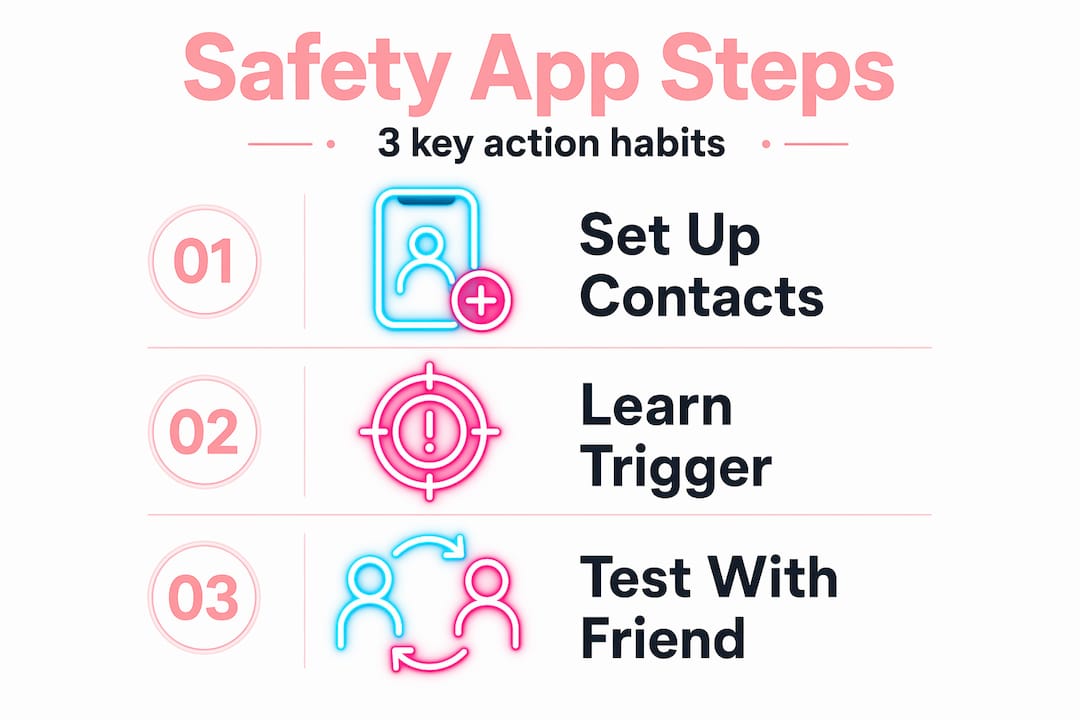
Every walker should follow three steps regardless of which tools they use. Set up emergency contacts. Know your activation gesture. Tell someone your route. Technology fills the gaps, but these three habits are the foundation.
My take on solo walking safety and technology
I have tested a lot of safety apps over the years, and the honest truth is that most people over-rely on the app and under-invest in preparation. They download something, feel safer, and skip the actual setup. That false sense of security is more dangerous than no app at all.
What I have found actually works is the combination. Built-in phone features are more reliable than third-party apps because they are integrated at the operating system level. They work when your phone is locked, when you are panicking, and when you cannot see the screen clearly. Third-party apps add value on top of that, not instead of it.
The other thing most walking safety guides miss is the social layer. Buddy systems and timed check-ins are not old-fashioned. They are often faster and more reliable than any app, because they involve a real person who knows you and will act if something feels wrong. Technology and community work better together than either does alone.
My recommendation is simple. Spend 15 minutes this week configuring your phone's built-in emergency features. Add one safety app that fits your specific routine. Tell two people how your check-in system works. That is it. You do not need ten apps. You need one solid setup you will actually use.
— I
How Quickshield-call fits into your safety setup

Most personal safety apps address one scenario. Quickshield-call is built to cover the full range of situations a walker actually faces. The platform handles silent panic alerts sent to multiple contacts with location attached, automatic zone notifications when you enter a pre-set area, a realistic fake incoming call to exit uncomfortable situations fast, and a parent dashboard that tracks battery level alongside location. One app manages what usually takes three or four separate tools to cover. For anyone serious about personal security on foot, Quickshield-call provides a single, organized system that runs quietly in the background until you need it.
FAQ
What is the best app for walking alone at night?
The best app depends on your setup, but combining your phone's built-in Emergency SOS with a dedicated safety app like Quickshield-call gives you the most reliable coverage. Built-in features work even when your phone is locked.
How do I stay safe walking alone without relying on my phone?
Tell someone your route and expected arrival time before you leave. Use a safe word system with a trusted contact who will check in if they do not hear from you. These steps work even when your phone battery dies or signal drops.
Does iPhone have a built-in safety feature for walking alone?
Yes. iPhone Emergency SOS calls emergency services and sends your location to preset contacts automatically. The Check In feature also notifies contacts if you stop moving or deviate from your route unexpectedly.
How many emergency contacts should I add to my safety app?
Add at least two contacts, ideally three. Primary, secondary, and tertiary contacts improve the chance that someone receives and acts on your alert, especially during late hours when one contact may not be available.
Are safety apps private?
Not always. Many free personal safety apps collect and share location data. Read the permissions before you install, and choose apps that offer session-based location sharing so your data is not tracked continuously.